Adobe Express Add-On MCP Server is All You Need

Introduction
Building Adobe Express add-ons can be complex. The Adobe Express Add-on MCP Server simplifies this by connecting your IDE with Adobe Express APIs and documentation, providing real-time guidance and code suggestions.
What is the Adobe Express Add-on MCP Server?
The Adobe Express Add-on MCP Server is a Model Context Protocol (MCP) server that connects AI-assisted IDEs (like Cursor) with Adobe Express add-on resources. It provides:
Real-time access to Adobe Express add-on APIs and documentation
TypeScript definitions and code examples
Context-aware guidance directly in your editor
Best practices and patterns for add-on development
MCP enables AI assistants to access external tools and data sources, making them more useful for specific domains like Adobe Express add-on development.
Benefits of Using the MCP Server
On-demand expertise
Your AI assistant gains deep knowledge of Adobe Express add-on APIs, providing accurate guidance without leaving your editor.Faster development
Generate code that follows best practices from the start, reducing debugging time and speeding up the cycle.LLM-agnostic compatibility
Works with any LLM that supports MCP, so you can use your preferred AI tools.Real-time documentation access
Access the latest documentation and TypeScript definitions without switching contexts.Enhanced learning
For developers new to Adobe Express add-ons, it serves as an interactive learning tool with real-time guidance.
How Adobe Express MCP Server Makes Building Adobe Express Add-ons Simple
Before the MCP Server
Switching between the editor and the documentation
Searching for API examples
Guessing correct patterns
Manual debugging of API usage
Time-consuming trial and error
With the MCP Server
Contextual code suggestions in your editor
Instant access to relevant documentation
Code generation aligned with best practices
Real-time guidance on API usage
Faster iteration and fewer errors
You don’t have to read documentation yourself (lol)
How to Set Up the MCP Server in Cursor
Open Cursor Settings:
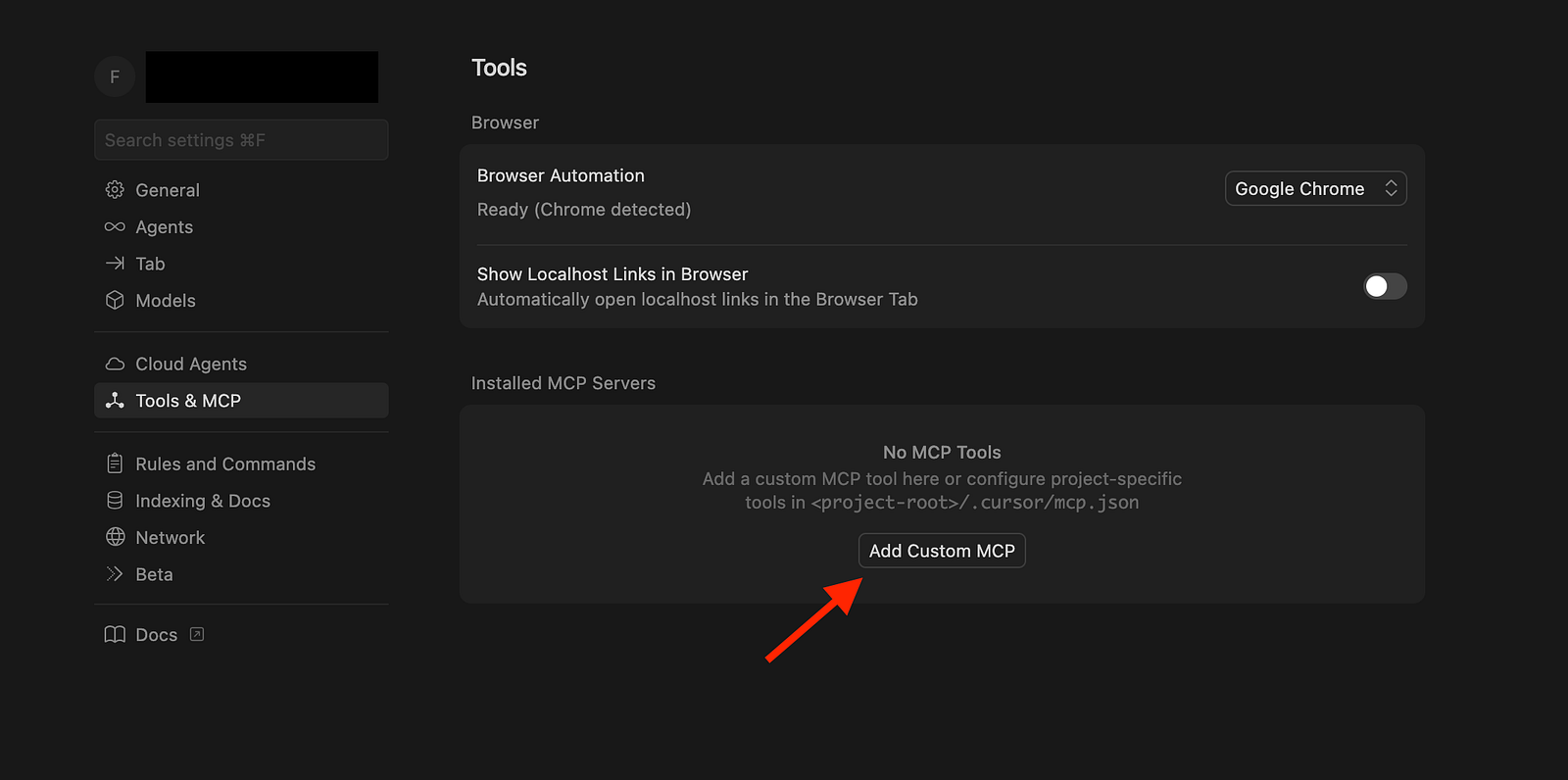
- Go to Cursor Settings > Tools & MCP
- Click on the “Add Custom MCP” button
2. Add the following configuration:
{
  "mcpServers": {
    "adobe-express-add-on": {
      "command": "npx",
      "args": ["@adobe/express-add-on-dev-mcp@latest", "--yes"]
    }
  }
}
3. Restart Cursor:
Completely quit and restart the Cursor to apply changes
4. Verify the connection:
Open a project in Cursor
Open Cursor’s AI chat (
Cmd + Lon Mac orCtrl + Lon Windows/Linux)Test with: “Can you access the Adobe Express Add-on MCP Server?”
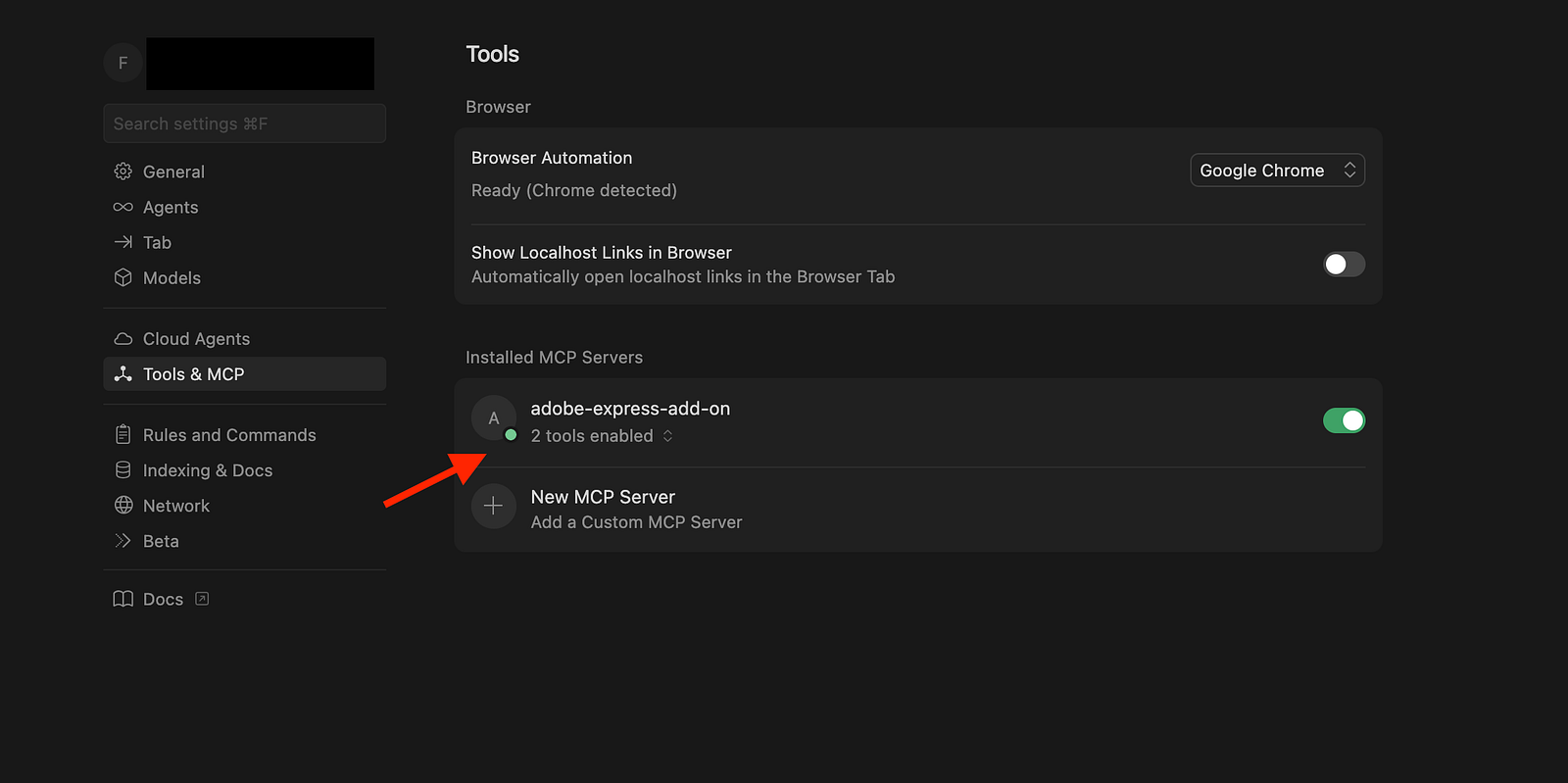
Or you will see in the MCP setting that the
adobe-express-add-onis enabled
How to Use the MCP Server in Cursor
Once set up, the MCP server enhances your workflow in several ways:
Automatic tool usage
The Cursor Agent automatically uses MCP tools when relevant. For example:
- “How do I create a rectangle in Adobe Express add-on?”
- “Show me how to add an image to the document.”
- “What’s the best way to handle user interactions in my add-on?”Explicit tool invocation
You can explicitly request tool usage:
- “Use the Adobe Express MCP server to find documentation on document sandbox APIs.”
- “Get me examples of how to use the editor API.”Tool execution process
When a tool is invoked:
1. The cursor shows a message requesting approval
2. Tool call arguments are displayed (expandable)
3. The tool executes upon approval
4. Response appears in chatPractical examples
Example 1: Understanding the manifest
Ask: “What should I include in my manifest.json for an Adobe Express add-on?”
The MCP server can explain your manifest structure:
{
    "testId": "eb6f56e2-47a3-4521-8fc9-0913365943da",
    "name": "Test Addon",
    "version": "1.0.0",
    "manifestVersion": 2,
    "requirements": {
        "apps": [
            {
                "name": "Express",
                "apiVersion": 1
            }
        ]
    },
    "entryPoints": [
        {
            "type": "panel",
            "id": "panel1",
            "main": "index.html",
            "documentSandbox": "code.js"
        }
    ]
}
Example 2: UI and sandbox communication
Ask: “How do I communicate between the UI and document sandbox?”
The MCP server can explain the pattern used in your code:
addOnUISdk.ready.then(async () => {
   console.log("addOnUISdk is ready for use.");
   // Get the UI runtime.
   const { runtime } = addOnUISdk.instance;
   // Get the proxy object, which is required
   // to call the APIs defined in the Document Sandbox runtime
   // i.e., in the `code.js` file of this add-on.
   const sandboxProxy = await runtime.apiProxy("documentSandbox");
   const root = createRoot(document.getElementById("root"));
   root.render(<App addOnUISdk={addOnUISdk} sandboxProxy={sandboxProxy} />);
});
Example 3: Debugging help
Ask: “Why is my rectangle not appearing in the document?”
The MCP server can help troubleshoot common issues like:
Missing
insertionParentusageIncorrect color format
Sandbox API is not properly exposed
Real-World Workflow Example
Here’s how the MCP server helps in a typical development session:
Starting a new add-on:
- Ask: “How do I set up a new Adobe Express add-on project?”
- Get: Step-by-step setup with best practicesAdding functionality:
- Ask: “How do I add text to the document?”
- Get: Code examples with proper API usageStyling elements:
- Ask: “How do I apply colors and effects to shapes?”
- Get: Examples usingmakeColorFilland other styling APIsHandling user input:
- Ask: “How do I handle file uploads in my add-on?”
- Get: Guidance on file handling, as shown in your App.jsx:
Conclusion
The Adobe Express Add-on MCP Server streamlines add-on development by:
Providing real-time, contextual guidance
Reducing time spent on documentation lookups
Generating code that follows best practices
Accelerating the development cycle
Making Adobe Express add-on development more accessible
Whether you’re new to Adobe Express add-ons or building complex integrations, the MCP server acts as an on-demand expert in your editor.
This is what I want you to do next
Set up the MCP server in Cursor (see setup instructions above)
Start a new Adobe Express add-on project or clone the given GitHub repo below
Ask your AI assistant questions about Adobe Express add-on development
Build faster with real-time guidance and code suggestions
The Adobe Express Add-on MCP Server is all you need to build powerful, well-structured Adobe Express add-ons efficiently.
Resources:
Adobe Express Add-on Documentation (https://developer.adobe.com/express/add-ons/docs/guides/?aio_external)
MCP Server Setup Guide (https://developer.adobe.com/express/add-ons/docs/guides/getting_started/local_development/mcp_server/)
Model Context Protocol Documentation (https://modelcontextprotocol.io)
Github Repository to start (https://github.com/Fardeen26/adobe-express-addon-mcp)
Community Adobe Express MCP server (https://github.com/Fardeen26/adobe-express-addon-mcp)
Keep building anons, see you in the next one :)
You can follow me on twitter btw: https://x.com/fardeentwt